Licensing Options in VRGS
VRGS uses LicenseSpring for its licensing system. There are several licensing options depending on the license you have.
Large Enterprise Licenses
Large enterprise license holders (annual turnover greater than £2M) can operate VRGS using either a node-locked or cloud-floating configuration. An on-premises licensing server option is available for organisations that require operation behind a firewall. This tier provides full commercial use, priority support and assisted onboarding.
Capabilities
- Full commercial use
- Priority or scheduled video-call support
- Cloud-floating or node-locked license modes
- Optional on-premises RLM-based license server support
- Onboarding video-call included
Small Enterprise Licenses
Small enterprise licenses are suited to commercial organisations with annual turnover under £2M. Licensing may be node-locked or cloud-floating and can be deployed using VRGeoscience cloud services or a local license server. This tier includes full commercial usage and guided onboarding.
Capabilities
- Full commercial use
- Email support
- Cloud-floating or node-locked licensing
- Optional on-premises RLM-based license server support
- Onboarding video-call included
Individual and Consultant Licenses
For independent commercial users and single-operator workflows. This license provides the same core software access as enterprise tiers but for one professional user. The license can be configured as cloud-floating or node-locked.
Capabilities
- Full commercial use
- Email support
- Cloud-floating or node-locked
- Onboarding video-call available
Non-Commercial Licenses
For academic teaching, research, student work or personal non-commercial study. This license grants access for non-commercial use only and is activated as a node-locked seat. Standard email-based support is provided.
Capabilities
- Non-commercial use only
- Node-locked license
- Email support
Public and Non-Profit Organisation Licenses
For government bodies, geological surveys, public organisations, charities and NGOs. This category offers reduced-rate commercial licensing and flexible deployment similar to enterprise tiers. Onboarding is available on request.
Capabilities
- Discounted commercial licensing
- Email support
- Cloud-floating or node-locked
- Onboarding video-call available
Custom and Volume Licensing
For large-scale roll-outs, multi-site deployments or organisations requiring bespoke licensing terms. This option supports multi-license scaling, training packages and commercial negotiation. Deployment models may include cloud-floating, node-locked or hybrid configurations.
Capabilities
- Full commercial use
- Flexible multi-user bundles
- Cloud-floating or node-locked support
- Priority or scheduled video-call support
- Multi-year and volume discounts
- Optional training and workshop packages
Online license setup for node-locked and floating licenses
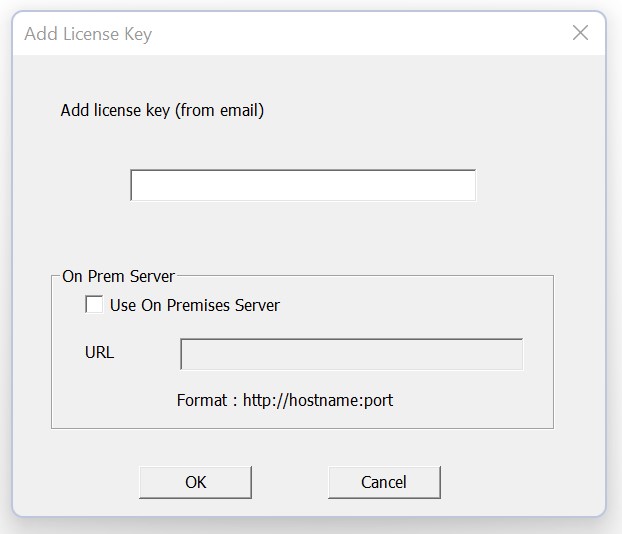
Upon starting VRGS for the first time you will see the activation window shown below.
This dialog contains:
- A text field labelled Add license key (from email)
- A checkbox labelled Use On Premises Server
- A text field labelled URL which becomes active only when the above box is checked
- Two buttons: OK and Cancel
To activate online:
-
Copy your license key from the licensing email.
-
Paste it into the Add license key field.
-
If you are using an Enterprise license and wish to activate using your internal RLM-based license server, enable Use On Premises Server and enter the server URL in the form:
http://hostname:port -
Click OK.
If activation is successful, VRGS will continue to launch.
Offline license setup (node-locked only)
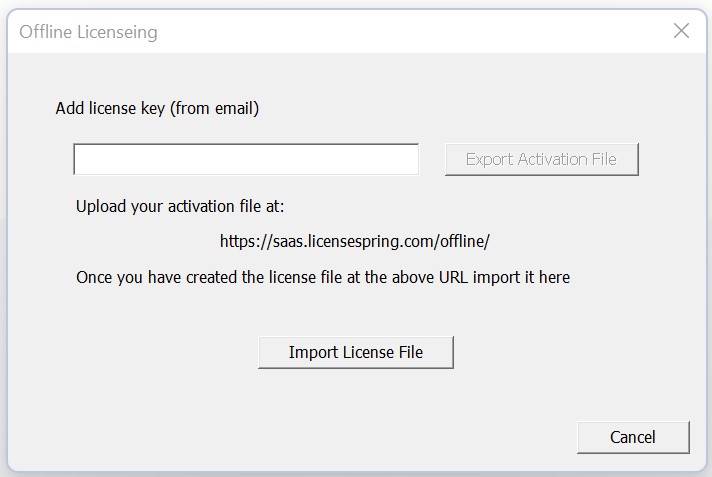
If VRGS cannot contact the licensing server (offline machine, air-gapped network or firewall-restricted environment), the following dialog will appear instead.
This window provides:
- A license key input field
- A disabled Export Activation File button that becomes active once a key is entered
- Instructions for uploading the request file to the LicenseSpring offline portal
- Two buttons: Export Activation File and Import License File
Activate offline as follows:
- Enter your license key into the text field.
The Export Activation File button will activate. - Click Export Activation File and save the generated request file.
- On a machine which can connect to the LicenseSpring server, open:
https://saas.licensespring.com/offline/ - Upload the request file and follow the instructions to generate the return activation file.
- Move the returned activation file back to the offline PC.
- In VRGS, select Import License File and choose the returned activation file.
If successful, your license is activated and VRGS will start normally.
Non-Comercial Site Licenses (Node-Locked)
Non-commercial site licenses allow VRGS to be deployed across multiple machines without manually entering a license key on each workstation.
To enable this, VRGS supports licensing via environment variable.
How to configure
-
On each machine that will run VRGS, create a system environment variable named:
VRGS_LICENSE_KEY -
Set the value of this variable to your non-commercial license key.
When VRGS starts, it will check for the VRGS_LICENSE_KEY variable.
If the variable exists and contains a valid key, VRGS will automatically register and activate the license for that machine without user input.
On-Premises RLM License Server (Enterprise Only)
VRGS Enterprise customers may request documentation for deploying an on-premises RLM-based license server.
This option is intended for secure networks or firewall-restricted systems where cloud activation is not suitable.
To request setup documentation or onboarding support: